

A living keyboard map
Your keyboard layout is drawn with what every key does. Orange for shortcuts, blue for remaps, red when two rules clash, grey when empty.
Your classic IBM keyboard, with macOS shortcuts.
Model M Remap is a Mac menubar app, free and open source, for setting up the keys of an IBM Model M connected through a Soarer's Converter. Every shortcut shows on the keyboard map. Click a key to add, change or remove what it does.
macOS 13 or later · Apple silicon · Free · MIT license
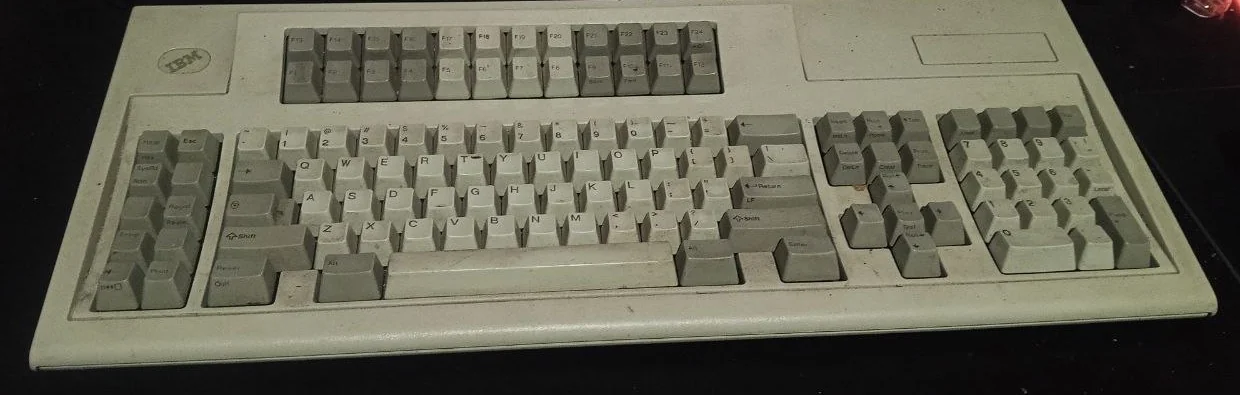
We use an IBM Model M 122-key, a classic terminal keyboard with 24 function keys and 10 extra keys on the left. The typing feel is unmatched, but on a Mac it feels foreign: there is no Command key, no key for copy, paste or screenshots, and its 34 extra keys do nothing.
The answer is Soarer's Converter, a community-made USB adapter that turns an old keyboard into a USB keyboard. Its settings live inside the adapter, so they work on any computer with no program running. The catch: the bundled tools are text commands and configuration files edited by hand, and one failed write can wipe the whole configuration.
We started with one simple command: press a key, choose what it does. After a dozen shortcuts we needed the whole picture: which keys are taken and which are still free. So we drew a map over a photo of our own keyboard, like the picture below. That map is what made us build this Mac app, so seeing and changing shortcuts takes a single click.
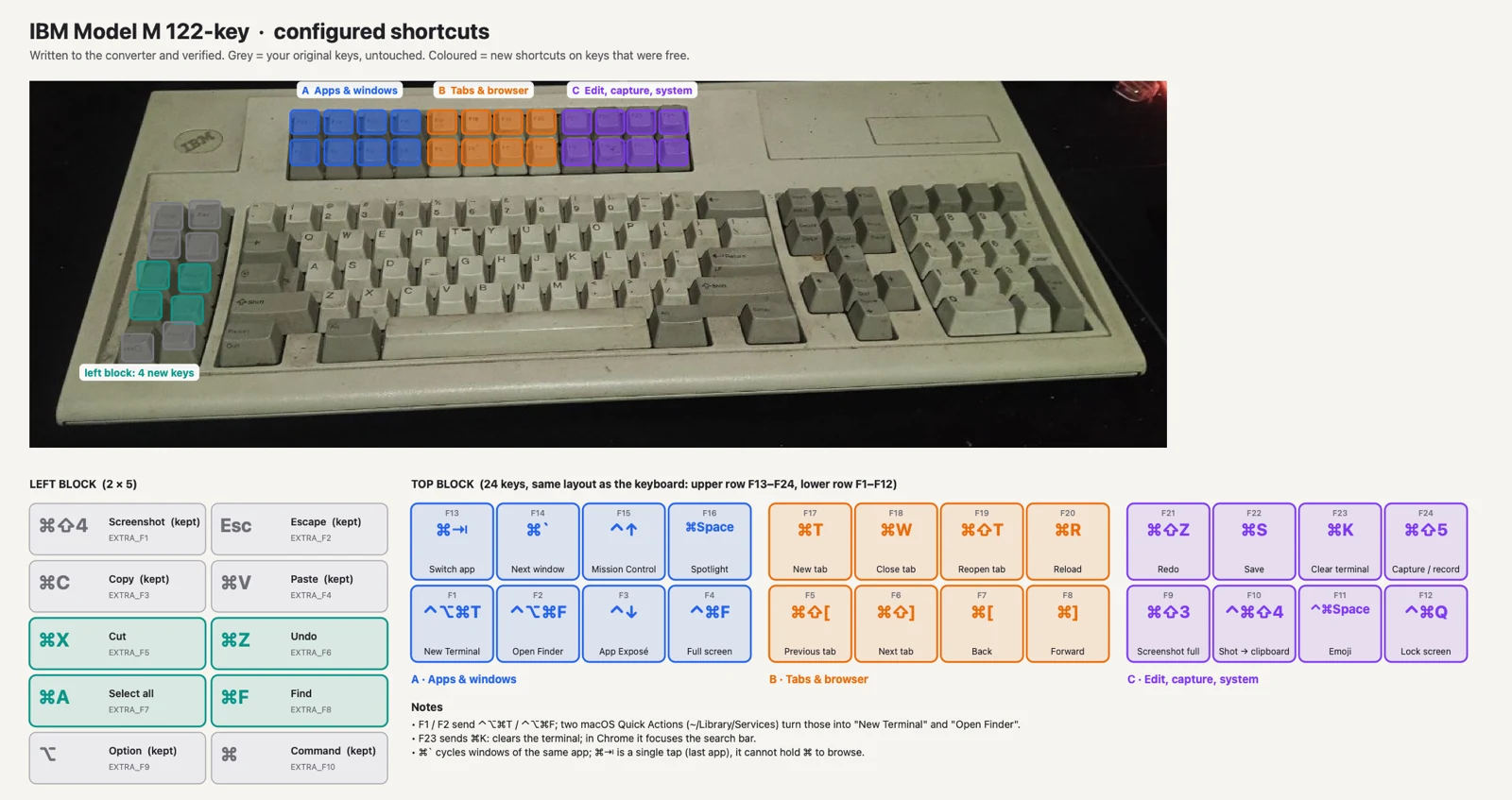
Every feature came from a real problem while setting up this keyboard.
Your keyboard layout is drawn with what every key does. Orange for shortcuts, blue for remaps, red when two rules clash, grey when empty.
No configuration files to edit. Want to add a key that is not on the map? Press it on the keyboard and the app recognizes it by itself.
IBM Model M 122-key, 101-key, 102-key ISO, Space Saving, PC/AT 84-key, PC/XT 83-key, plus generic 104- and 105-key layouts. A profile of your own is just one JSON file.
Every change is preceded by a backup, retried if it fails, and rolled back if it still fails. Your configuration is not lost to a single failed write.
The rules live in the adapter, not on the Mac. Quit the app or move to another computer and the shortcuts keep working.
Give any key a label like Open Terminal. Labels are stored on your Mac and shown on the map.
Every image below is the app's real window, not a mockup.
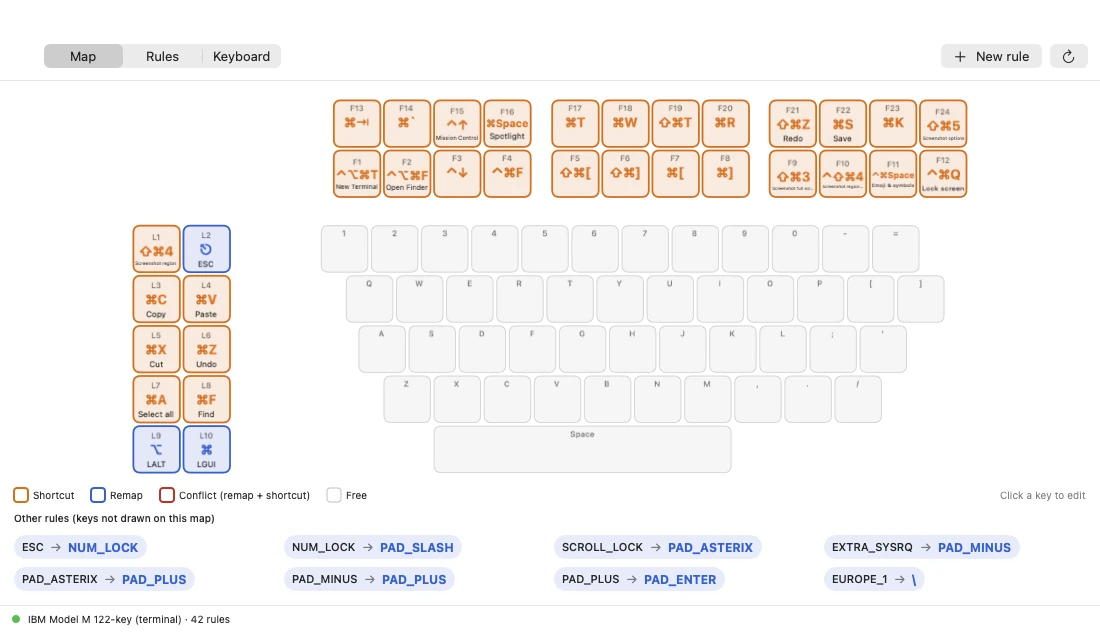
Every key shows what it does: orange for shortcuts, blue for remaps, grey for keys that are still empty. This is our keyboard: 31 shortcuts, from copy and paste to opening Terminal and Finder with one key.
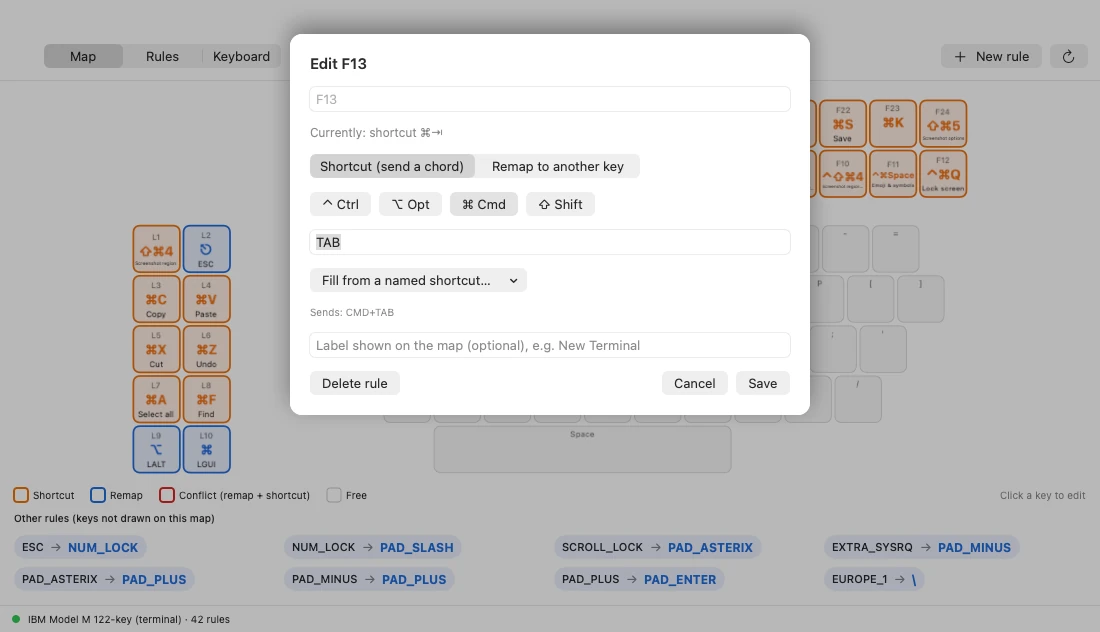
Click a key on the map, pick Ctrl, Opt, Cmd and Shift, then the key. Or fill it from a list of ready-made shortcuts and give it a name of your own so it is easy to remember.
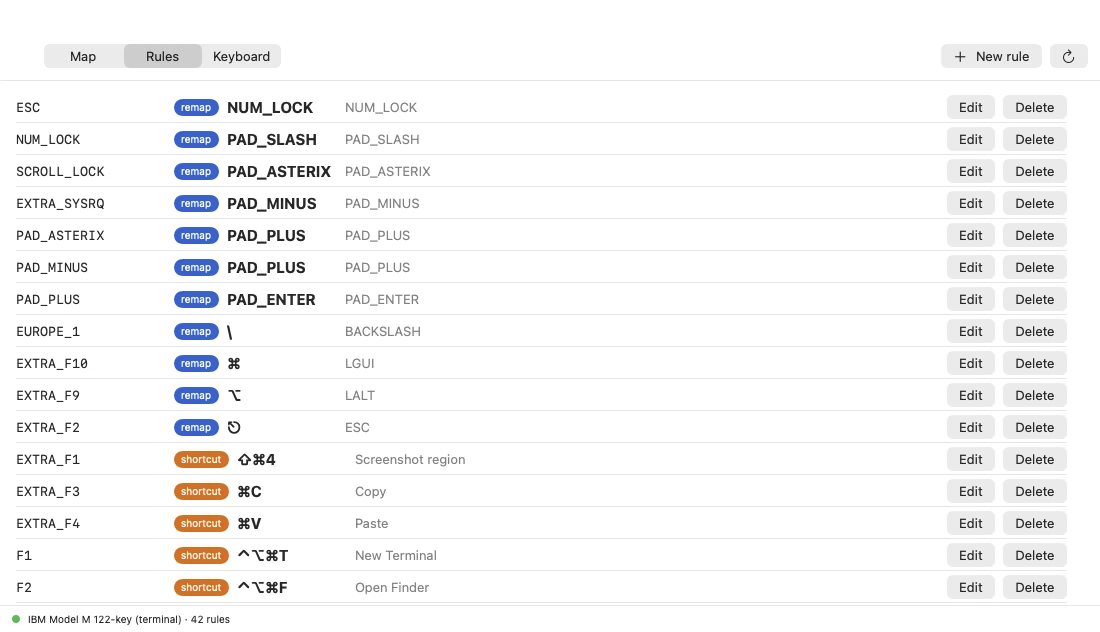
Includes keys that are not drawn on the map. Every rule can be changed or deleted right from the list.
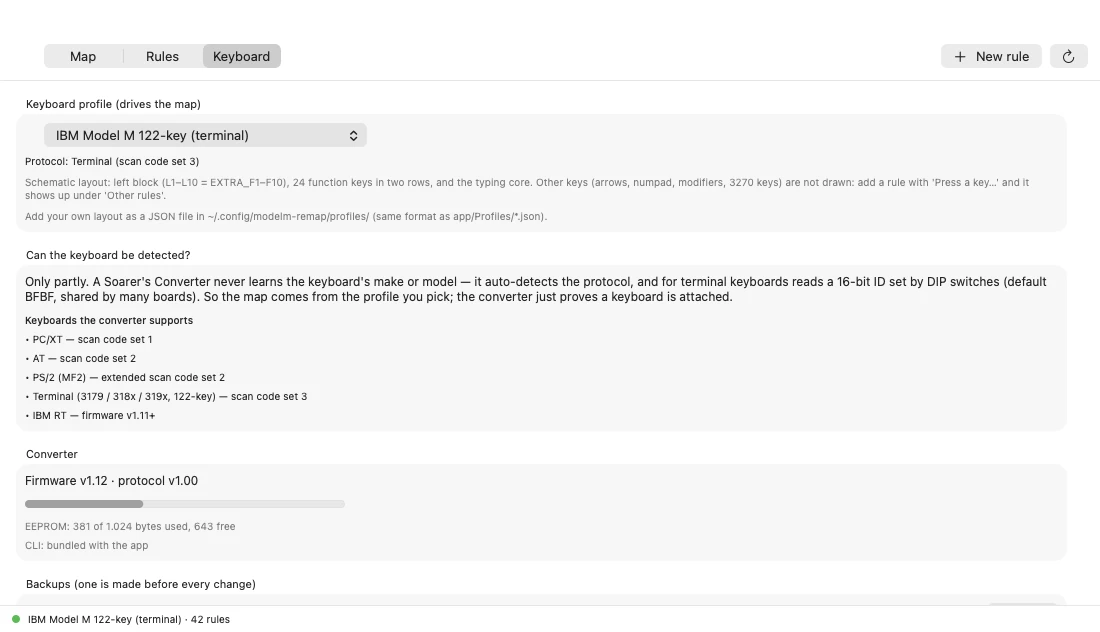
Pick the layout that matches your keyboard, see the free space left in the adapter, and restore a backup when needed. A backup is made automatically before every change.
Your Model M must be connected through a Soarer's Converter, a community-made Teensy-based adapter. We do not sell the adapter.
Download the DMG from GitHub, drag Model M Remap to Applications, then open it through System Settings → Privacy & Security → Open Anyway the first time.
Pick your keyboard profile in the Keyboard tab, then click a key on the map to set up your first shortcut.
Prefer to build it yourself? Only the Xcode Command Line Tools are needed, no Homebrew:
git clone https://github.com/swdevbali/modelm-remap.git
cd modelm-remap
./app/build-dmg.shAll the code is on GitHub: the command line tool, the Mac app and every keyboard profile. The tools for Soarer's Converter are built from the sctools project (BSD-2-Clause) with two small fixes that we include. Soarer's Converter itself is the work of Soarer and its community.
Open the repository on GitHub →This app uses no account and sends nothing to the internet. The configuration lives in the adapter; backups and labels live on your own Mac.
Yes. Free and open source under the MIT license.
Yes. This app manages what is stored in that adapter. An ordinary USB keyboard has no configuration storage like it.
Every keyboard Soarer's Converter supports: PC/XT, AT, PS/2, 122-key terminal keyboards and IBM RT. Pictured maps exist for eight layouts; other keyboards can still be set up through the rules list and the key-detection button.
Only partly. The adapter recognizes the keyboard protocol, not its make or model, so you pick the matching map profile yourself.
The rules stored in the adapter work on any operating system, but the app is only available for macOS for now.
This app is not yet notarized by Apple. Open System Settings → Privacy & Security, then click Open Anyway. You only need to do this once.
A Mac with Apple silicon and macOS 13 or later. The app uses python3 from the Xcode Command Line Tools.
Free and open source. Download, pick your keyboard profile and set up its keys with one click.